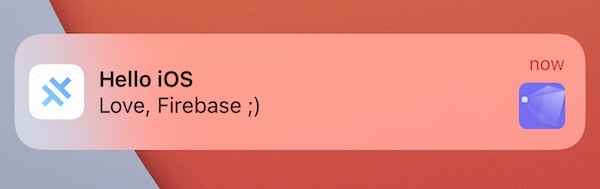
在 Ionic + Angular 应用中使用 Firebase 推送通知
Web 框架:Angular 平台:iOS, Android
应用开发者向其用户提供的最常见功能之一是推送通知。在本教程中,我们将逐步介绍让 Firebase Cloud Messaging 在 iOS 和 Android 上工作所需的所有步骤。
为了从 Firebase 注册和监控推送通知,我们将在 Ionic + Angular 应用中使用 Capacitor 的推送通知 API。
所需的依赖项
使用 Capacitor 构建和部署 iOS 和 Android 应用需要一些设置。请在继续之前按照说明安装必要的 Capacitor 依赖项。
要在 iOS 上测试推送通知,Apple 要求你拥有一个付费的 Apple Developer 账户。
此外,我们使用 Firebase 进行推送通知,因此如果你使用其他使用 Firebase SDK 的 Cordova 插件,请确保它们是最新版本。
准备 Ionic Capacitor 应用
如果你已有现有的 Ionic 应用,请跳过本节。如果没有,让我们先创建一个 Ionic 应用。
在你喜欢的终端中,安装最新版本的 Ionic CLI:
npm install -g @ionic/cli
接下来,让我们使用 CLI 基于 blank 启动项目创建一个新的 Ionic Angular 应用,并将其命名为 capApp:
ionic start capApp blank --type=angular
应用创建成功后,切换到新创建的项目目录:
cd capApp/
最后,编辑 capacitor.config.ts 中的 appId。
const config: CapacitorConfig = {
- appId: 'io.ionic.starter',
+ appId: 'com.mydomain.myappnam',
  appName: 'capApp',
  webDir: 'www'
};
构建应用并添加平台
在向此项目添加任何原生平台之前,必须至少构建应用一次。Web 构建会创建 Capacitor 所需的 Web 资源目录(Ionic Angular 项目中的 www 文件夹)。
ionic build
接下来,让我们为应用添加 iOS 和 Android 平台。
ionic cap add ios
ionic cap add android
运行这些命令后,项目根目录下会创建 android 和 ios 文件夹。这些是完全独立的原生项目工件,应被视为你 Ionic 应用的一部分(即,将其检入到源代码管理中)。
使用 Capacitor 推送通知 API
首先,我们需要安装 Capacitor 推送通知插件。
npm install @capacitor/push-notifications
npx cap sync
然后,在我们进入 Firebase 之前,我们需要确保我们的应用可以通过使用 Capacitor 推送通知 API 注册推送通知。我们还会添加一个 alert(你也可以使用 console.log 语句)来显示通知到达且应用在设备上打开时的负载。
在你的应用中,进入 home.page.ts 文件,添加 import 语句和一个 const 来使用 Capacitor Push API:
import { ActionPerformed, PushNotificationSchema, PushNotifications, Token } from '@capacitor/push-notifications';
然后,添加带有一些 API 方法的 ngOnInit() 方法来注册和监控推送通知。我们还会在一些事件中添加 alert() 来监控正在发生的事情:
export class HomePage implements OnInit {
  ngOnInit() {
    console.log('正在初始化 HomePage');

    // 请求使用推送通知的权限
    // iOS 将提示用户并返回是否授予权限
    // Android 将直接授予而不提示
    PushNotifications.requestPermissions().then((result) => {
      if (result.receive === 'granted') {
        // 向 Apple / Google 注册以通过 APNS/FCM 接收推送
        PushNotifications.register();
      } else {
        // 显示一些错误信息
      }
    });

    // 成功后,我们应该能够接收通知
    PushNotifications.addListener('registration', (token: Token) => {
      alert('推送注册成功,token:' + token.value);
    });

    // 我们的设置有问题,推送将无法工作
    PushNotifications.addListener('registrationError', (error: any) => {
      alert('注册错误:' + JSON.stringify(error));
    });

    // 如果应用在设备上打开,向我们显示通知负载
    PushNotifications.addListener('pushNotificationReceived', (notification: PushNotificationSchema) => {
      alert('收到推送:' + JSON.stringify(notification));
    });

    // 点击通知时调用的方法
    PushNotifications.addListener('pushNotificationActionPerformed', (notification: ActionPerformed) => {
      alert('推送操作已执行:' + JSON.stringify(notification));
    });
  }
}
以下是 home.page.ts 的完整实现:
import { Component, OnInit } from '@angular/core';

import { ActionPerformed, PushNotificationSchema, PushNotifications, Token } from '@capacitor/push-notifications';

@Component({
  selector: 'app-home',
  templateUrl: 'home.page.html',
  styleUrls: ['home.page.scss'],
})
export class HomePage implements OnInit {
  ngOnInit() {
    console.log('正在初始化 HomePage');

    // 请求使用推送通知的权限
    // iOS 将提示用户并返回是否授予权限
    // Android 将直接授予而不提示
    PushNotifications.requestPermissions().then((result) => {
      if (result.receive === 'granted') {
        // 向 Apple / Google 注册以通过 APNS/FCM 接收推送
        PushNotifications.register();
      } else {
        // 显示一些错误信息
      }
    });

    PushNotifications.addListener('registration', (token: Token) => {
      alert('推送注册成功,token:' + token.value);
    });

    PushNotifications.addListener('registrationError', (error: any) => {
      alert('注册错误:' + JSON.stringify(error));
    });

    PushNotifications.addListener('pushNotificationReceived', (notification: PushNotificationSchema) => {
      alert('收到推送:' + JSON.stringify(notification));
    });

    PushNotifications.addListener('pushNotificationActionPerformed', (notification: ActionPerformed) => {
      alert('推送操作已执行:' + JSON.stringify(notification));
    });
  }
}
之后,你需要生成一个新的构建并让 Capacitor 知道这些更改。你可以通过以下方式完成:
ionic build
npx cap copy
在 Firebase 上为你的应用创建项目
在我们将 Firebase Cloud Messaging 连接到你的应用并发送推送通知之前,你需要在 Firebase 中启动一个项目。
转到 Firebase 控制台,点击 Add project 按钮。
为项目命名,接受 Firebase ToS,然后点击 Create project 继续。项目 ID 将自动为你生成。
Android
将 Firebase 与 Android 应用集成
本节或多或少与使用 Firebase 控制台文档设置 Firebase 类似。请参阅下面特定于 Capacitor 的说明。
转到你的 Firebase 项目的 Project Overview 页面,在顶部点击 Android 图标以添加一个新的 Android 应用。
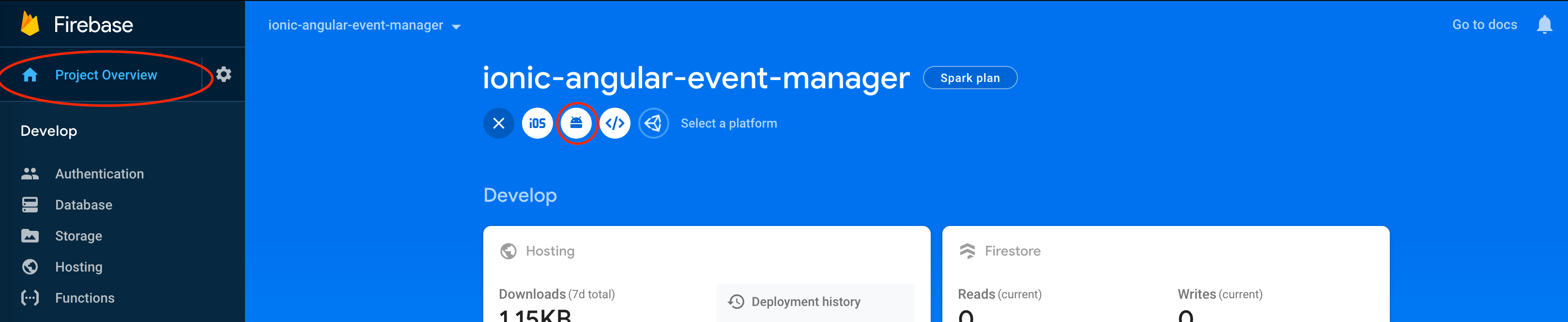
下一个屏幕会要求你提供一些关于应用的信息。
- 你的 Android 包名 应与
capacitor.config.ts中的 appId 匹配 - 我们为此 Capacitor 应用 ID 使用了
com.mydomain.myappname,所以这就是我们用于此条目的内容。 - 昵称和调试签名证书是可选的
然后点击 Register app 按钮。
下载并使用 google-services.json 文件
下一个提示将要求你下载 google-services.json 文件。此文件包含你的 Capacitor 应用从 Android 连接到 Firebase 所需的信息。
将 google-services.json 文件下载到本地机器。然后将文件移动到你的 Capacitor Android 项目目录中,特别是 android/app/ 下。
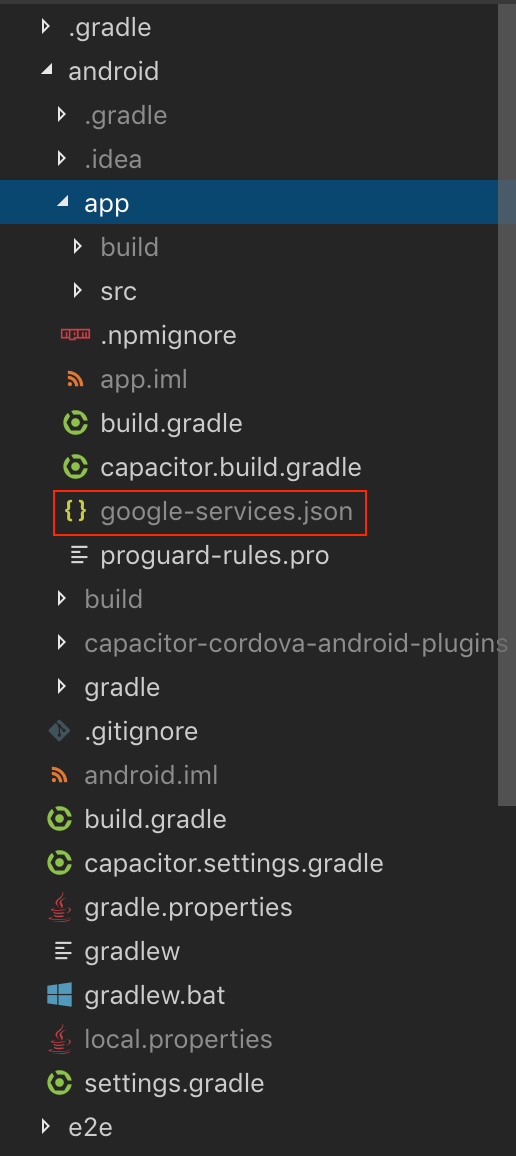
我们不需要向项目_添加_任何依赖项,因为 @capacitor/push-notifications 在其 build.gradle 文件中自动包含了 firebase-messaging 的一个版本。
iOS
前提条件
iOS 推送通知的设置比 Android 复杂得多。你必须拥有一个付费的 Apple Developer 账户_并且_在能够使用你的 iOS 应用测试推送通知之前,需要处理以下事项:
- 在 Apple Developer Portal 中为你的 iOS 应用设置正确的开发或生产证书和配置文件
- 在 Apple Developer Portal 中为开发或生产创建 APNS 证书或密钥
- 在 Xcode 中确保已启用推送通知功能
将 Firebase 与我们的原生 iOS 应用集成
这部分与上面的 Android 部分非常相似,但有一些关键区别。
首先,转到你的 Firebase 项目的 Project Overview 页面。如果你一直在遵循本指南,页面顶部已经列出了一个 Android 应用。
要向你的 Firebase 项目添加 iOS,请点击 Add App 按钮并选择 iOS 平台。
下一个屏幕会要求你提供一些关于应用的信息。
- 你的 iOS Bundle ID 应与
capacitor.config.ts中的 appId 匹配 - 我们为此 Capacitor 应用 ID 使用了
com.mydomain.myappname,所以这就是我们用于此条目的内容。 - 应用昵称和 App Store ID 是可选的
然后点击 Register app 按钮。
将 GoogleService-Info.plist 文件添加到你的 iOS 应用
注意:这与你的 Android 应用使用的文件不同。
将提供的 GoogleService-Info.plist 下载到本地机器。
然后你必须打开 Xcode...
npx cap open ios
... 并按照 Firebase 的指示将 .plist 文件移动到你的 Xcode 项目中,确保将其添加到所有 target。
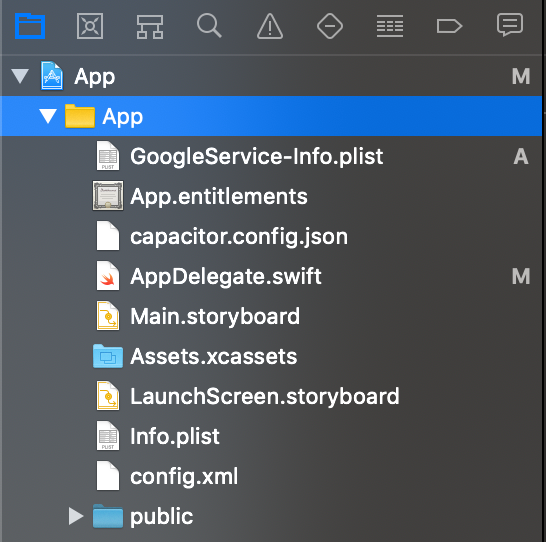
通过 CocoaPods 添加 Firebase SDK
iOS 上的推送通知 API 使用 CocoaPods(一个 iOS 依赖管理系统),我们需要告诉 CocoaPods 使用 Firebase。
为此,我们需要修改 Podfile,可以在 Xcode 中的 Pods 下找到:
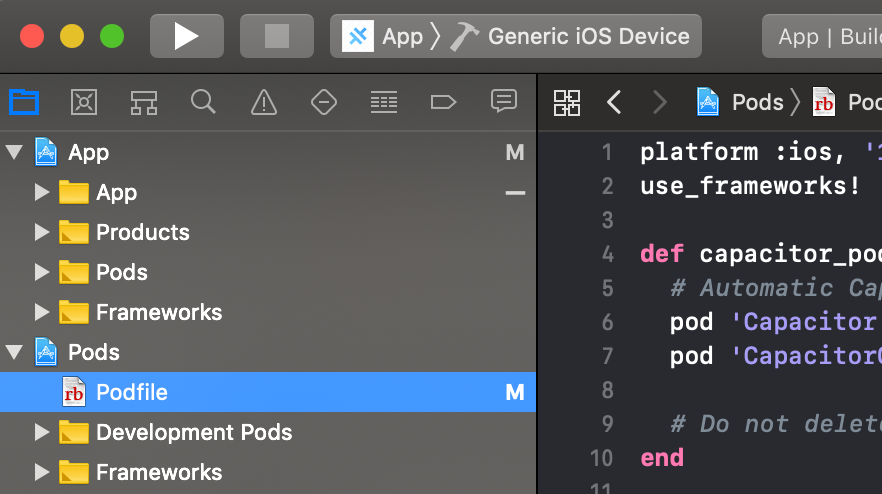
我们需要将 Firebase 添加到为我们的 App target 提供的 CocoaPods 中。为此,将 pod FirebaseMessaging 添加到你的 target 'App' 部分,如下所示:
target 'App' do
  capacitor_pods
  # 在此处添加你的 Pod
  pod 'FirebaseMessaging' # 添加此行
end
你的 Podfile 应该类似于这样:
require_relative '../../node_modules/@capacitor/ios/scripts/pods_helpers'

platform :ios, '14.0'
use_frameworks!

# 解决 Xcode 缓存 Pods 的变通方法,
# 在安装新的 Cordova 插件后需要 Product -> Clean Build Folder
# 需要 CocoaPods 1.6 或更新版本
install! 'cocoapods', :disable_input_output_paths => true

def capacitor_pods
  pod 'Capacitor', :path => '../../node_modules/@capacitor/ios'
  pod 'CapacitorCordova', :path => '../../node_modules/@capacitor/ios'
  pod 'CapacitorApp', :path => '../../node_modules/@capacitor/app'
  pod 'CapacitorHaptics', :path => '../../node_modules/@capacitor/haptics'
  pod 'CapacitorKeyboard', :path => '../../node_modules/@capacitor/keyboard'
  pod 'CapacitorPushNotifications', :path => '../../node_modules/@capacitor/push-notifications'
  pod 'CapacitorStatusBar', :path => '../../node_modules/@capacitor/status-bar'
end

target 'App' do
  capacitor_pods
  # 在此处添加你的 Pod
  pod 'FirebaseMessaging'
end

post_install do |installer|
  assertDeploymentTarget(installer)
end
更新项目
现在我们需要确保我们的 iOS 项目已更新并安装了正确的 Firebase CocoaPod。
注意:这部分可能需要一段时间,因为 CocoaPods 需要下载所有适当的文件/依赖项。
npx cap update ios
添加初始化代码
要在 iOS 应用启动时连接到 Firebase,你需要在 AppDelegate.swift 文件中添加以下内容。
首先,在文件顶部添加 import:
import FirebaseCore
import FirebaseMessaging
... 然后将 Firebase 的配置方法添加到 AppDelegate.swift 文件中的 application(didFinishLaunchingWithOptions) 方法中。
FirebaseApp.configure()
然后你需要添加以下两个方法来正确处理推送注册事件:
func application(_ application: UIApplication, didRegisterForRemoteNotificationsWithDeviceToken deviceToken: Data) {
  Messaging.messaging().apnsToken = deviceToken
  Messaging.messaging().token(completion: { (token, error) in
    if let error = error {
        NotificationCenter.default.post(name: .capacitorDidFailToRegisterForRemoteNotifications, object: error)
    } else if let token = token {
        NotificationCenter.default.post(name: .capacitorDidRegisterForRemoteNotifications, object: token)
    }
  })
}

func application(_ application: UIApplication, didFailToRegisterForRemoteNotificationsWithError error: Error) {
  NotificationCenter.default.post(name: .capacitorDidFailToRegisterForRemoteNotifications, object: error)
}
你完成的 AppDelegate.swift 文件应该类似于这样:
import UIKit
import Capacitor
import FirebaseCore
import FirebaseMessaging

@UIApplicationMain
class AppDelegate: UIResponder, UIApplicationDelegate {

  var window: UIWindow?


  func application(_ application: UIApplication, didFinishLaunchingWithOptions launchOptions: [UIApplication.LaunchOptionsKey: Any]?) -> Bool {
    // 应用启动后的自定义覆盖点。
    FirebaseApp.configure()
    return true
  }

  func application(_ application: UIApplication, didRegisterForRemoteNotificationsWithDeviceToken deviceToken: Data) {
    Messaging.messaging().apnsToken = deviceToken
    Messaging.messaging().token(completion: { (token, error) in
      if let error = error {
          NotificationCenter.default.post(name: .capacitorDidFailToRegisterForRemoteNotifications, object: error)
      } else if let token = token {
          NotificationCenter.default.post(name: .capacitorDidRegisterForRemoteNotifications, object: token)
      }
    })
  }

  func application(_ application: UIApplication, didFailToRegisterForRemoteNotificationsWithError error: Error) {
    NotificationCenter.default.post(name: .capacitorDidFailToRegisterForRemoteNotifications, object: error)
  }
将 APNS 证书或密钥上传到 Firebase
如果你从一开始就按照说明进行操作,你将在 Apple Developer Portal 中创建了 Apple APNS 证书或 APNS 身份验证密钥。你需要将其中一种上传到 Firebase,然后 Firebase 才能与 APNS 通信并向你的应用发送推送通知。
要上传你的证书或身份验证密钥,从 Project Overview 页面:
- 点击你的 iOS 应用,然后点击 Settings 齿轮图标。
- 在 Settings 页面上,点击 Cloud Messaging 选项卡。
- 在 iOS app configuration 标题下,使用提供的 Upload 按钮上传你的身份验证密钥或证书。
发送测试通知
现在是有趣的部分——让我们验证来自 Firebase 的推送通知在 Android 和 iOS 上是否正常工作!
我们需要在 Android 或 iOS 上启动我们的应用,以便我们的 home.page.ts 页面可以注册并接收通知。
要在 Android Studio 中打开你的 Android 项目:
npx cap open android
要在 Xcode 中打开你的 iOS 项目:
npx cap open ios
项目打开后,使用 Android Studio 或 Xcode 的 Run 功能将应用侧载到你的设备上。应用应该会在主页上启动。
注意:在 iOS 上,你会看到一个弹窗询问你是否允许应用的通知——请确保选择 Allow notifications!
如果你的应用成功注册并且你遵循了上述代码,你应该会看到一个带有成功消息的 alert!
现在我们将测试通知是否被我们的设备接收。要发送通知,请在 Firebase 中转到项目窗格中 Grow 标题下的 Cloud Messaging 部分。
接下来,选择 New Notification 按钮。
创建通知时,你只需要指定以下信息:
- 通知的文本
- 标题(仅限 Android,iOS 可选)
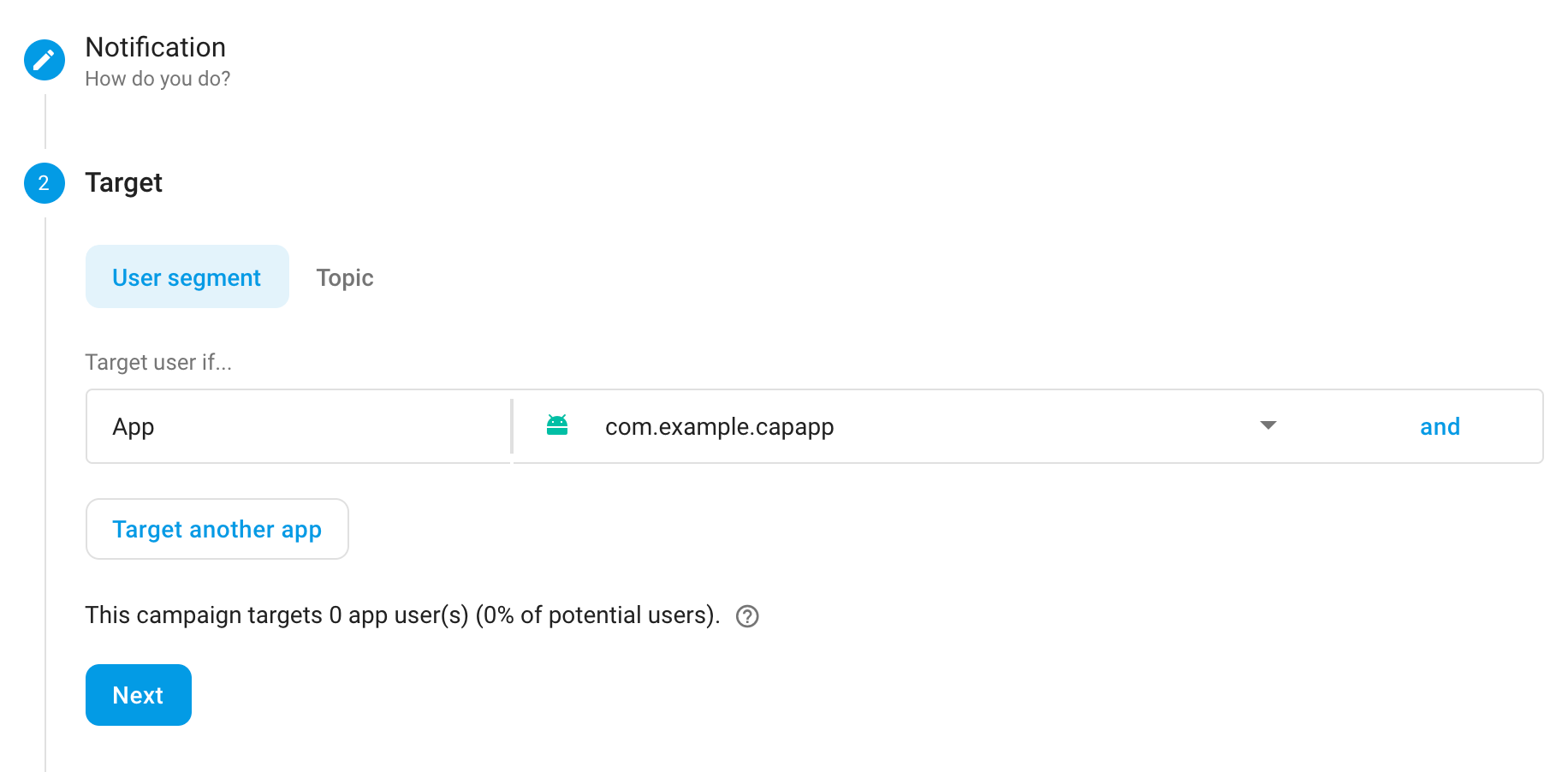
- 目标(用户段或主题;我建议只 targeting iOS 或 Android 应用本身,见下图)
- 计划(保持为"Now")
此时,你可以 Review 你组合好的通知,并选择 Publish 发送通知。
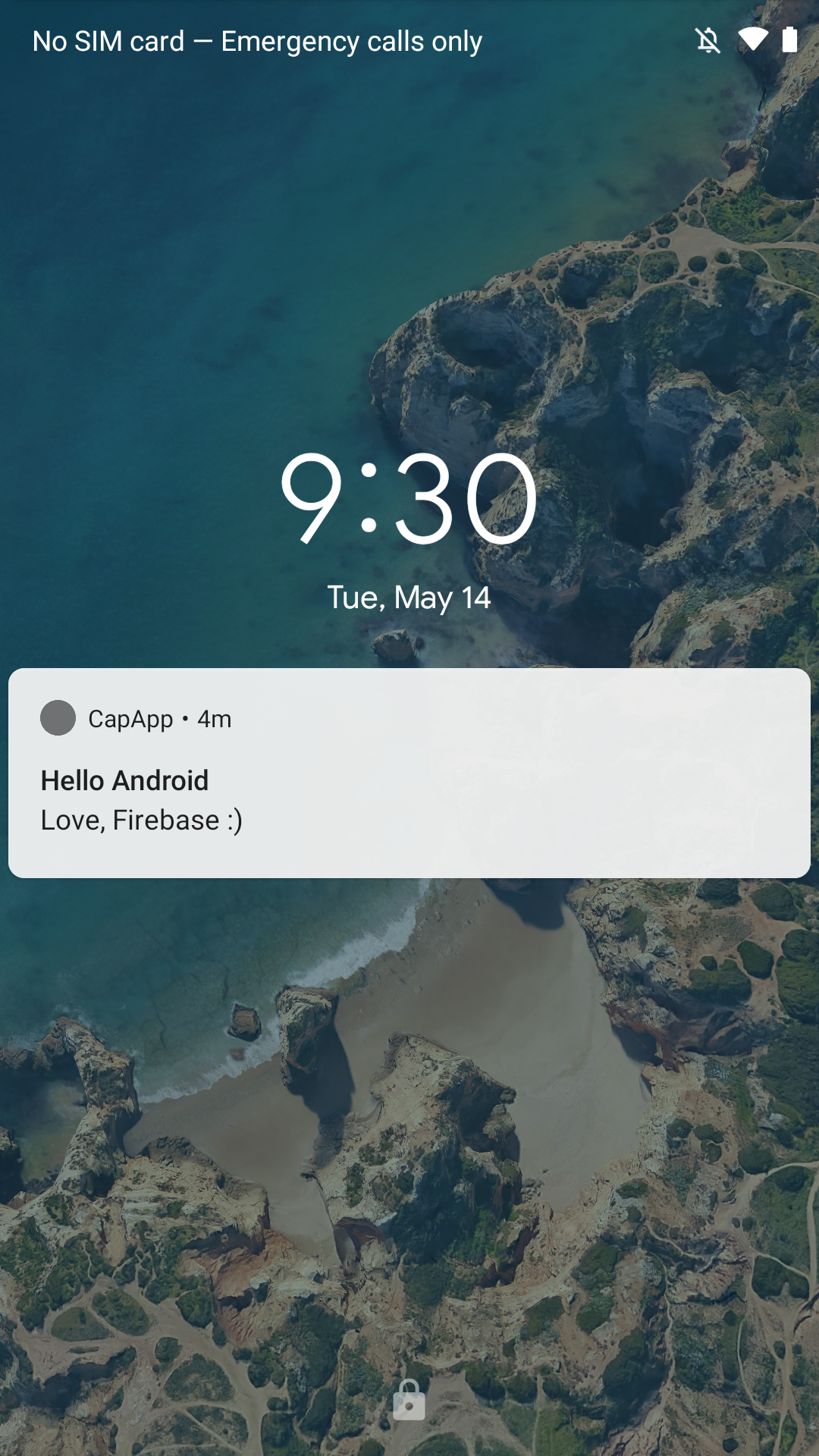
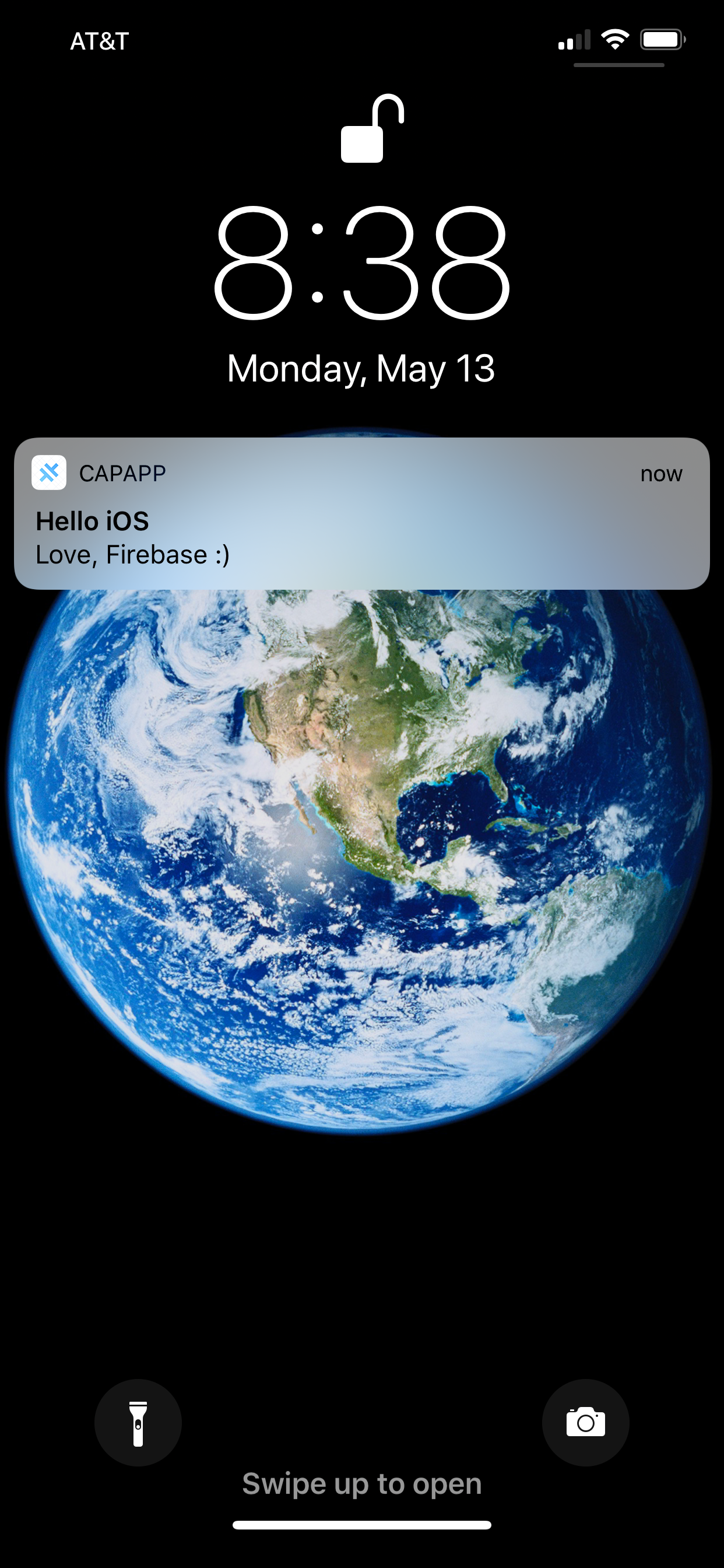
如果你的应用配置正确,你会在主屏幕上看到一个弹出 alert,显示你在 Firebase 中编写的推送通知。然后你可以点击通知,你应该会看到 pushActionPerformed 事件的 alert,根据我们上面的代码。
推送通知中的图片
你可以选择性地按照下面的指南将图片作为推送通知的一部分包含进来。
Firebase Messaging SDK 可以将 ImageUrl 属性作为其负载的一部分包含进来并显示它。URL 必须是 https:// 并且大小小于 300kb。
Android 上的图片
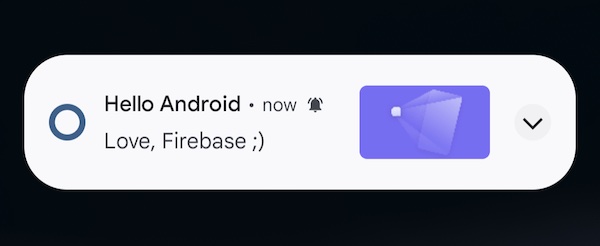
当使用 @capacitor/push-notifications 时,Android 会自动显示图片。如果你在 Firebase 控制台 中通过设置 Notification image 进行测试,推送通知将出现在 Android 设备上,类似于下面的截图:
iOS 上的图片
iOS 需要一个通知服务扩展(Notification Service Extension)添加到你的项目中,才能在推送通知中显示图片。
在 XCode 中:
- 点击
File>New>Target - 选择
Notification Service Extension并点击Next - 输入
Product Name(例如pushextension) - 选择你的 Team
- 点击
Finish - 当被询问时点击
Activate
从 Targets 列表中选择 pushextension,然后:
- 点击
Signing & Capabilities - 点击
+ Capability - 选择
Push Notifications - 将 Deployment target 从
iOS 16.4(或 Xcode 选择的任何版本)更改为iOS 14.0
如果你不更改扩展的部署目标,则图片不会在较旧版本 iOS 的设备上显示。
要将 Firebase Messaging 添加到扩展中,打开你的 Podfile 并添加:
target 'pushextension' do
  pod 'FirebaseMessaging'
end
然后通过运行以下命令更新 CocoaPods:
npx cap update ios
现在打开 NotificationService.swift(它将在名为 pushextension 的文件夹中)并将内容替换为以下内容:
import UserNotifications
import FirebaseMessaging

class NotificationService: UNNotificationServiceExtension {
    var contentHandler: ((UNNotificationContent) -> Void)?
    var bestAttemptContent: UNMutableNotificationContent?

    override func didReceive(_ request: UNNotificationRequest, withContentHandler contentHandler: @escaping (UNNotificationContent) -> Void) {
        guard let content = request.content.mutableCopy() as? UNMutableNotificationContent else { return }
        self.contentHandler = contentHandler
        self.bestAttemptContent = content

        FIRMessagingExtensionHelper().populateNotificationContent(content, withContentHandler: contentHandler)
    }

    override func serviceExtensionTimeWillExpire() {
        guard let contentHandler = contentHandler,
              let bestAttemptContent =  bestAttemptContent else { return }

        contentHandler(bestAttemptContent)
    }
}
你现在应该从 Firebase 控制台 测试推送通知,记得设置 Notification image 并选择你的 iOS 应用。当它到达 iOS 设备时,它将显示在右侧,如下所示: