使用 Universal Links 和 App Links 实现深度链接
平台:iOS、Android
通用链接(iOS)和应用链接(Android)提供了将用户直接带到原生应用内特定内容的能力(通常称为深度链接)。
当用户点击深度链接时,用户被直接发送到您的应用中,而不需要先经过设备的 Web 浏览器或网站。如果应用未安装,则用户将被引导到网站。如果用户直接导航到网站,他们仍然停留在网站上。这使得深度链接成为为 Web、iOS 和 Android 构建的跨平台应用的优秀功能:无缝的移动体验,优雅地回退到网站。
好处:
- 安全:Universal/App Links 使用 HTTPS URL 链接到您拥有的网站域名,确保没有其他应用可以使用您的链接。
- 无缝体验:一个 URL 同时适用于您的网站和应用,确保用户能够无错误地成功访问他们正在寻找的内容。
- 增加参与度:链接可以从电子邮件客户端、搜索引擎结果等地方打开。
演示视频
以下是实际效果。在此示例中,用户已安装原生应用。他们从电子邮件中点击应用链接,并被直接带入应用本身。首先,点击根链接(https://beerswift.app),将用户引导到主应用页面。接下来,点击深度链接(https://beerswift.app/tabs/tab3),将用户带到 Tab3 页面。
先决条件
- 预先配置好的 Capacitor 应用。
- 对于 iOS,需要加入 Apple Developer Program。
出于说明目的,将使用 https://beerswift.app 作为 Web 应用链接。
使用 Capacitor App API 进行深度链接路由
当点击深度链接后打开原生应用时,移动操作系统不会自动知道将用户路由到哪里。这必须在应用本身中使用 Capacitor App API 在应用启动时实现。
如果您的网站和应用路径不匹配,您将需要实现更高级的 URL 模式匹配(参见此指南的示例)。但如果您的移动应用和 Web 应用使用相同的代码库,这非常简单 - 只需重定向到相同的 URL。以下示例假设如此。
Angular
路由应在 app.component.ts 中实现。首先从 Angular 导入 NgZone 和 Router,然后从 Capacitor 导入 App:
import { Component, NgZone } from '@angular/core';
import { Router } from '@angular/router';
import { App, URLOpenListenerEvent } from '@capacitor/app';
接下来,将 Router 和 NgZone 添加到构造函数:
constructor(private router: Router, private zone: NgZone) {
    this.initializeApp();
}
最后,监听 appUrlOpen 事件,并在找到深度链接时重定向:
initializeApp() {
    App.addListener('appUrlOpen', (event: URLOpenListenerEvent) => {
        this.zone.run(() => {
            // 示例 URL:https://beerswift.app/tabs/tab2
            // slug = /tabs/tab2
            const slug = event.url.split(".app").pop();
            if (slug) {
                this.router.navigateByUrl(slug);
            }
            // 如果没有匹配,则不执行任何操作 - 让常规路由逻辑处理
        });
    });
}
React
React 有多种选择。一种方法是将 App API 监听器功能包装在一个新组件中,然后将其添加到 App.tsx 中。首先创建 AppUrlListener.tsx,然后导入 React Router 的 useHistory hook 以及 Capacitor App API:
import React, { useEffect } from 'react';
import { useHistory } from 'react-router-dom';
import { App, URLOpenListenerEvent } from '@capacitor/app';
接下来,定义 AppUrlListener 组件,监听 appUrlOpen 事件,然后在找到深度链接时重定向:
const AppUrlListener: React.FC<any> = () => {
  let history = useHistory();
  useEffect(() => {
    App.addListener('appUrlOpen', (event: URLOpenListenerEvent) => {
      // 示例 URL:https://beerswift.app/tabs/tab2
      // slug = /tabs/tab2
      const slug = event.url.split('.app').pop();
      if (slug) {
        history.push(slug);
      }
      // 如果没有匹配,则不执行任何操作 - 让常规路由逻辑处理
    });
  }, []);

  return null;
};

export default AppUrlListener;
在 App.tsx 中,导入新组件:
import AppUrlListener from './pages/AppUrlListener';
然后将其添加到 IonReactRouter 内部(或您的应用启动的任何地方,只要确保 History hook 可用即可):
const App: React.FC = () => {
  return (
    <IonApp>
      <IonReactRouter>
        <AppUrlListener></AppUrlListener>
        <IonRouterOutlet>
          <Route path="/home" component={Home} exact={true} />
          <Route exact path="/" render={() => <Redirect to="/home" />} />
        </IonRouterOutlet>
      </IonReactRouter>
    </IonApp>
  );
};
Vue
VueJS 提供了一个名为 Vue Router 的第一方路由系统,它与 Vue 原生集成。要使用 Vue Router 设置深度链接,请从您用于配置所有路由的文件开始(通常是 routes.js 或类似文件)。
首先,我们从插件中导入 Capacitor 的 App,以及 Vue 和 VueRouter。
import { App, URLOpenListenerEvent } from '@capacitor/app';
import Vue from 'vue';
import VueRouter from 'vue-router';
接下来,使用 Vue Router 配置您的路由(更多信息请参阅 Vue Router 入门)。
const router = new VueRouter({
  routes: [],
});
建议使用 mode: history,这样您就不需要处理 # 了。
让 Vue 知道您正在使用 Vue Router,并在 Vue 中注册路由:
const VueApp = new Vue({
  router,
}).$mount('#app');
最后,我们需要注册我们的应用以支持深度链接。为此,我们在 Capacitor App 上为 appUrlOpen 事件添加一个事件监听器。Capacitor 将捕获此事件,然后我们将其交给 Vue Router 来导航到请求的页面。
App.addListener('appUrlOpen', function (event: URLOpenListenerEvent) {
  // 示例 URL:https://beerswift.app/tabs/tabs2
  // slug = /tabs/tabs2
  const slug = event.url.split('.app').pop();

  // 仅在存在 slug 时才推送到路由
  if (slug) {
    router.push({
      path: slug,
    });
  }
});
创建站点关联文件
为了使 Apple 和 Google 允许深度链接打开您的应用,必须在您的网站和应用之间创建双向关联。必须为每个平台创建一个文件,并放置在您网站上的 .well-known 文件夹中,如下所示:https://beerswift.app/.well-known/。
继续查看 iOS 和 Android 的配置细节。
iOS 配置
iOS 配置包括创建站点关联文件以及配置原生应用以识别应用域名。
您必须加入 Apple Developer Program。
创建站点关联文件
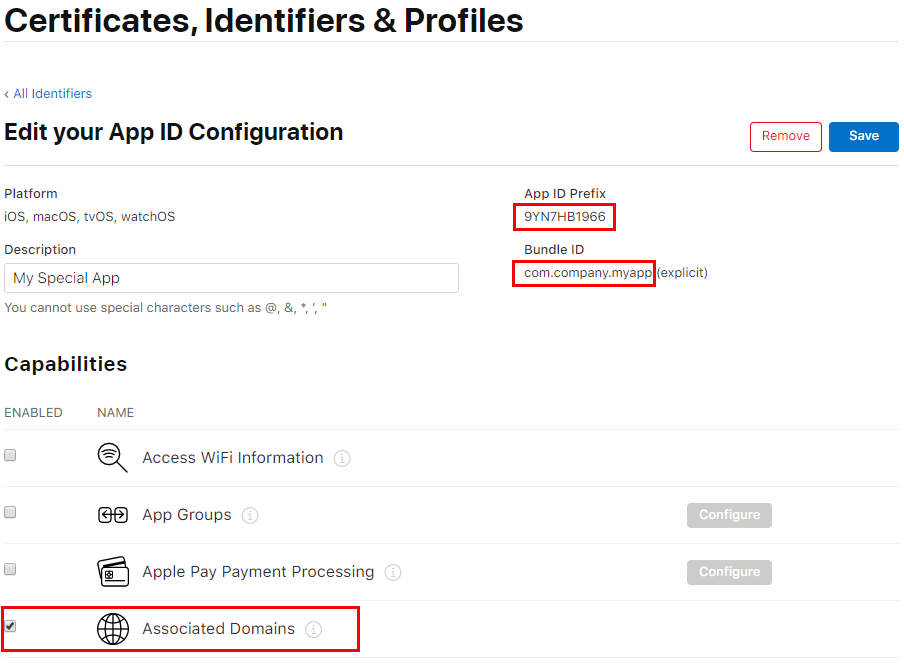
首先,登录 Apple Developer 网站。导航到"Certificates, Identifiers, & Profiles"部分,选择您的应用标识符。记下 Team ID 和 Bundle ID,在 Capabilities 下,切换"Associated Domains"然后保存:
接下来,创建站点关联文件(apple-app-site-association)。
注意:尽管是 JSON 文件,但不要使用文件扩展名保存。
以下是 apple-app-site-association 文件的示例。请务必将 TEAMID.BUNDLEID 替换为您自己的 ID(例如:8L65AZE66A.com.netkosoft.beerswift)。
{
  "applinks": {
    "apps": [],
    "details": [
      {
        "appID": "TEAMID.BUNDLEID",
        "paths": ["*"]
      }
    ]
  }
}
接下来,将文件上传到您的网站(托管在 HTTPS 上),然后使用 Apple 的工具验证其配置是否正确。URL 应遵循此格式:https://beerswift.app/.well-known/apple-app-site-association
添加 Associated Domain
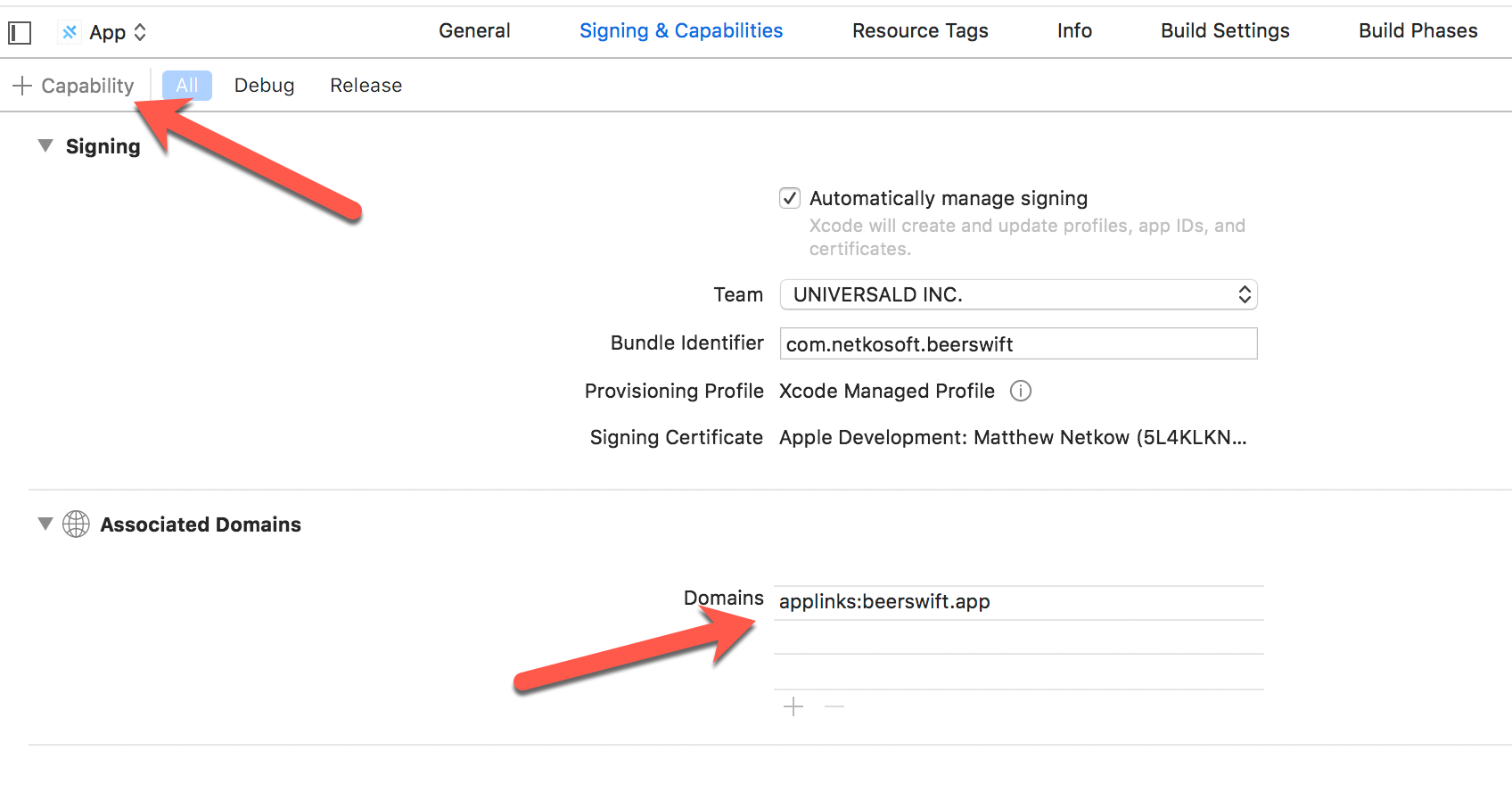
最后一步是配置 iOS 应用以识别传入的链接。打开 Xcode,然后导航到 Signing & Capabilities。点击"+ Capability",然后选择 Associated Domains。在出现的 Domains 条目中,使用格式 applinks:yourdomain.com 进行编辑:
Android 配置
Android 配置包括创建站点关联文件以及使用 intent filter 配置原生应用以识别应用链接。
创建站点关联文件
站点关联文件需要您的 Android 证书的 SHA256 指纹。
如果您没有证书,请创建一个:
keytool -genkey -v -keystore KEY-NAME.keystore -alias ALIAS -keyalg RSA -keysize 2048 -validity 10000
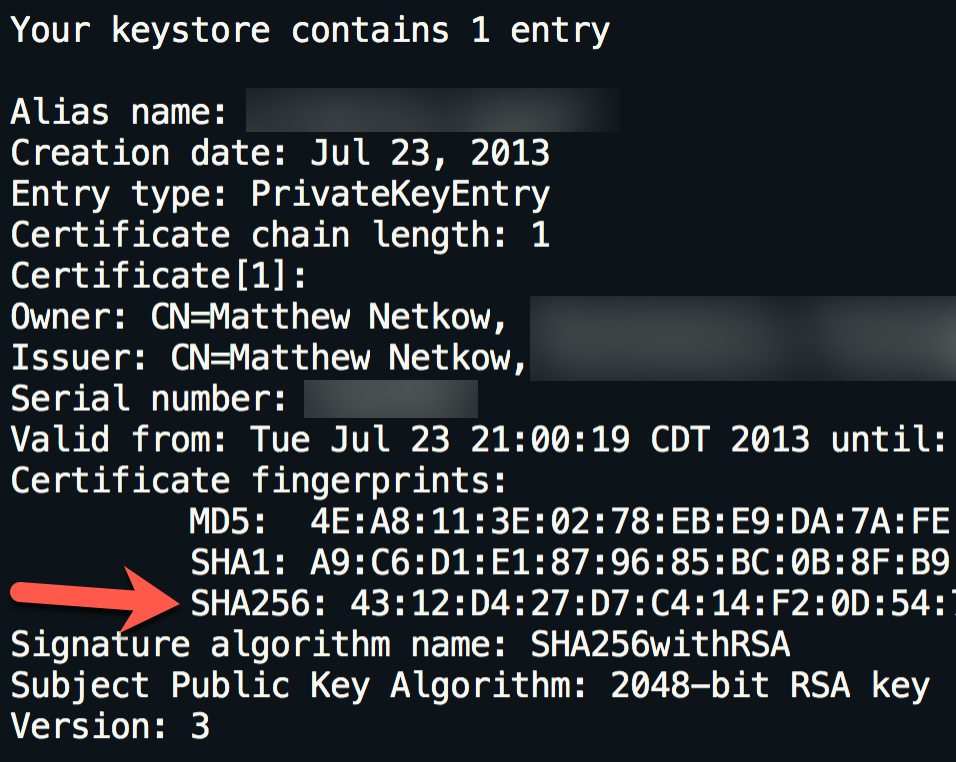
使用您现有的(或新创建的)Keystore 证书,使用 keytool 命令列出 keystore 的详细信息:
keytool -list -v -keystore my-release-key.keystore
打印输出将包含 SHA256 指纹:
接下来,使用 Google 的 Asset Links 工具创建站点关联文件。填写网站域名、应用包名和 SHA256 指纹,然后点击"Generate statement":
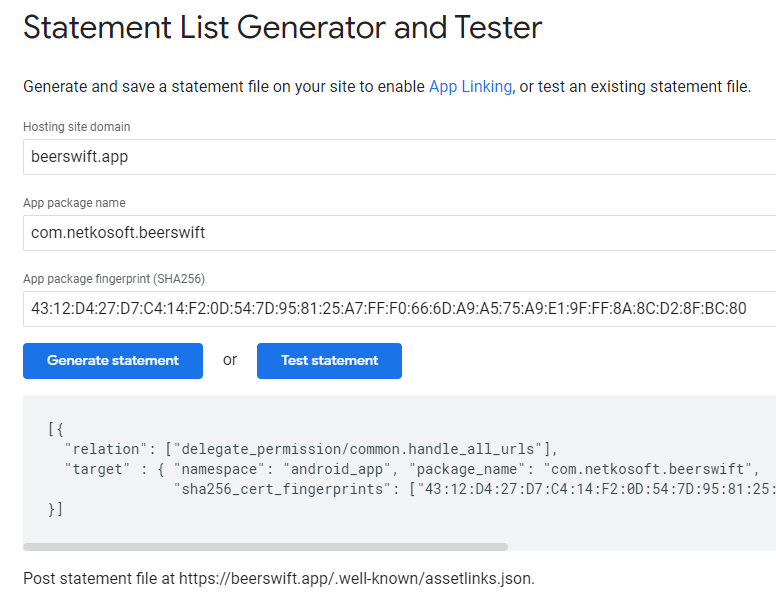
将 JSON 输出复制到 .well-known/assetlinks.json 下的新本地文件中。
// assetlinks.json
[
  {
    "relation": ["delegate_permission/common.handle_all_urls"],
    "target": {
      "namespace": "android_app",
      "package_name": "com.netkosoft.beerswift",
      "sha256_cert_fingerprints": ["43:12:D4:27:D7:C4:14..."]
    }
  }
]
将文件部署到您的网站(托管在 HTTPS 上),然后通过点击 Asset Link 工具中的"Test statement"按钮进行验证。如果配置正确,将显示一条成功消息:
成功!主机 [website] 授予应用 [app package] 深度链接权限。
添加 Intent Filter
最后一步是配置 Android 应用以识别传入的链接。为此,请在 AndroidManifest.xml 的 <activity> 元素内添加新的 Intent Filter:
<intent-filter android:autoVerify="true">
    <action android:name="android.intent.action.VIEW" />
    <category android:name="android.intent.category.DEFAULT" />
    <category android:name="android.intent.category.BROWSABLE" />
    <data android:scheme="https" android:host="beerswift.app" />
</intent-filter>
完整的 Activity 应该类似于这样:
<activity
    android:configChanges="orientation|keyboardHidden|keyboard|screenSize|locale"
    android:name="com.netkosoft.beerswift.MainActivity"
    android:label="@string/title_activity_main"
    android:theme="@style/AppTheme.NoActionBarLaunch"
    android:launchMode="singleTask">

    <intent-filter>
        <action android:name="android.intent.action.MAIN" />
        <category android:name="android.intent.category.LAUNCHER" />
    </intent-filter>

    <intent-filter android:autoVerify="true">
        <action android:name="android.intent.action.VIEW" />
        <category android:name="android.intent.category.DEFAULT" />
        <category android:name="android.intent.category.BROWSABLE" />
        <data android:scheme="https" android:host="beerswift.app" />
    </intent-filter>
</activity>
网站配置
网站配置将根据使用的工具和后端而有所不同。以下是一些建议。
Angular
将关联文件放在 src/.well-known 下。接下来,配置构建过程以原样部署这些文件(确保 Apple/Google 可以正确读取它们)。打开 angular.json,在 architect => assets 下,添加一个新条目到数组中:
{
  "glob": "**/*",
  "input": "src/.well-known",
  "output": ".well-known/"
}
构建然后部署网站。
NuxtJS
将关联文件放在 static/.well-known 下。不需要额外步骤;只需构建然后部署网站。
React
将关联文件放在 public/.well-known 下。不需要额外步骤;只需构建然后部署网站。
WordPress
WordPress 的说明请参见此处。
验证
要验证网站和原生应用的配置是否正确,网站需要托管站点关联文件,但应用不需要在应用商店中。
将设备连接到您的计算机,构建并部署原生应用,然后通过点击网站链接进行测试。如果原生应用打开,则表示所有步骤都已正确实施。
资源
- Branch.io:什么是深度链接?
- Android:应用链接
- iOS:通用链接
- iOS:在您的应用中支持通用链接